
How to upload a session recording to Mentalyc
Upload your therapy session to Mentalyc in 6 steps
Uploading a session to Mentalyc takes 6 quick steps.
You can upload a recording of your session from a computer or a mobile phone. The steps are mostly the same; only the screen layout differs.
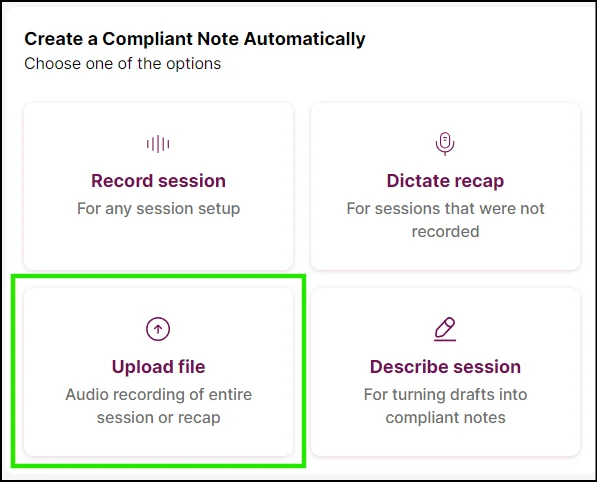
Step 1: After logging in, click on the “Upload file” tile at the bottom-left side of the card on the dashboard.
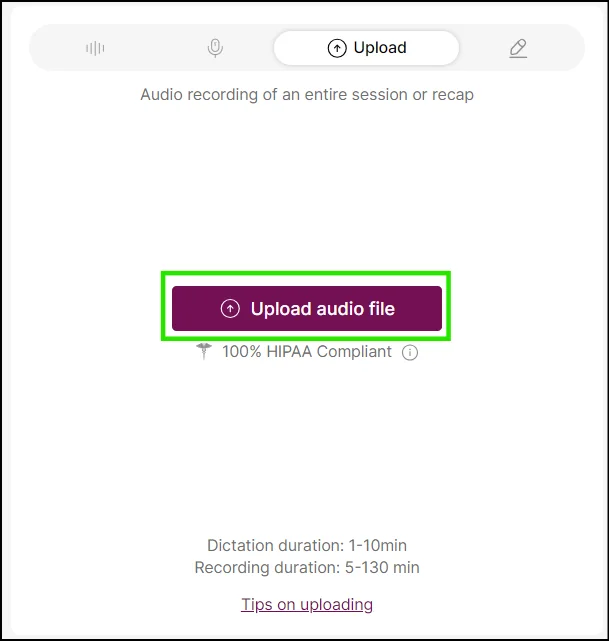
Step 2: Click on the “Upload audio file” button and select your audio file.
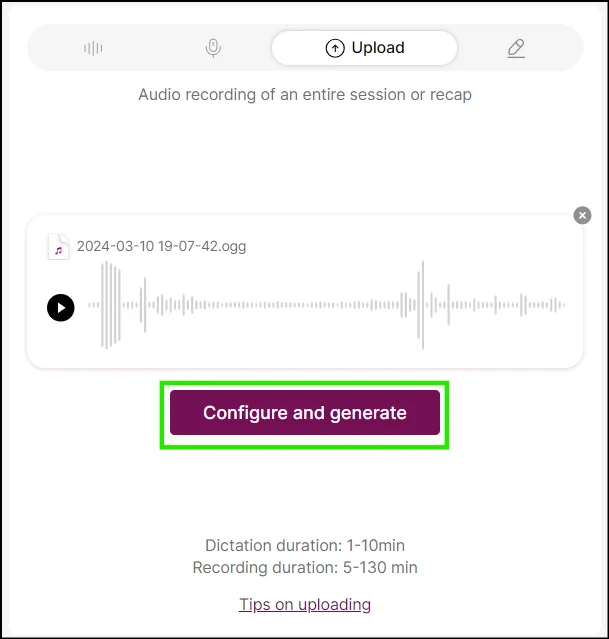
Step 3: Click on “Configure and generate”
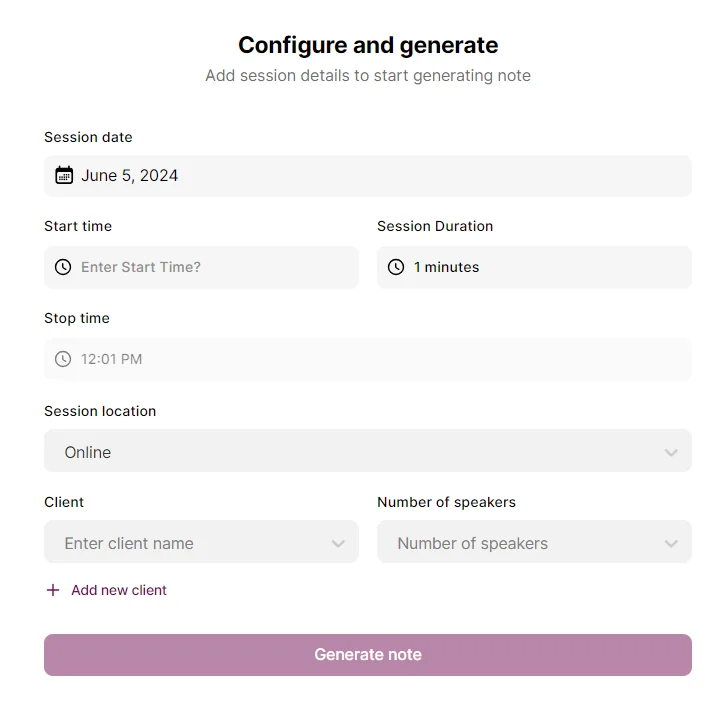
Step 4: Input the details of the particular session and click on “Generate note”
Step 5: Give it a few minutes to generate the note.
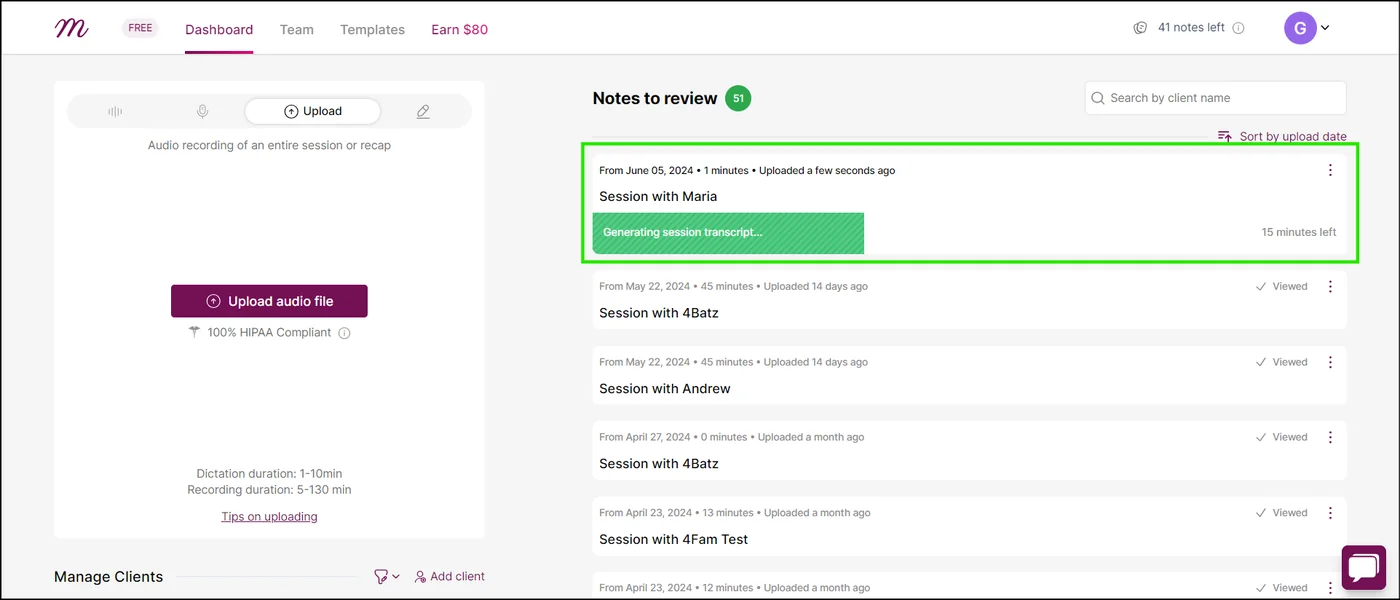
Step 6: Finally, click on “View note” to display the generated note.
