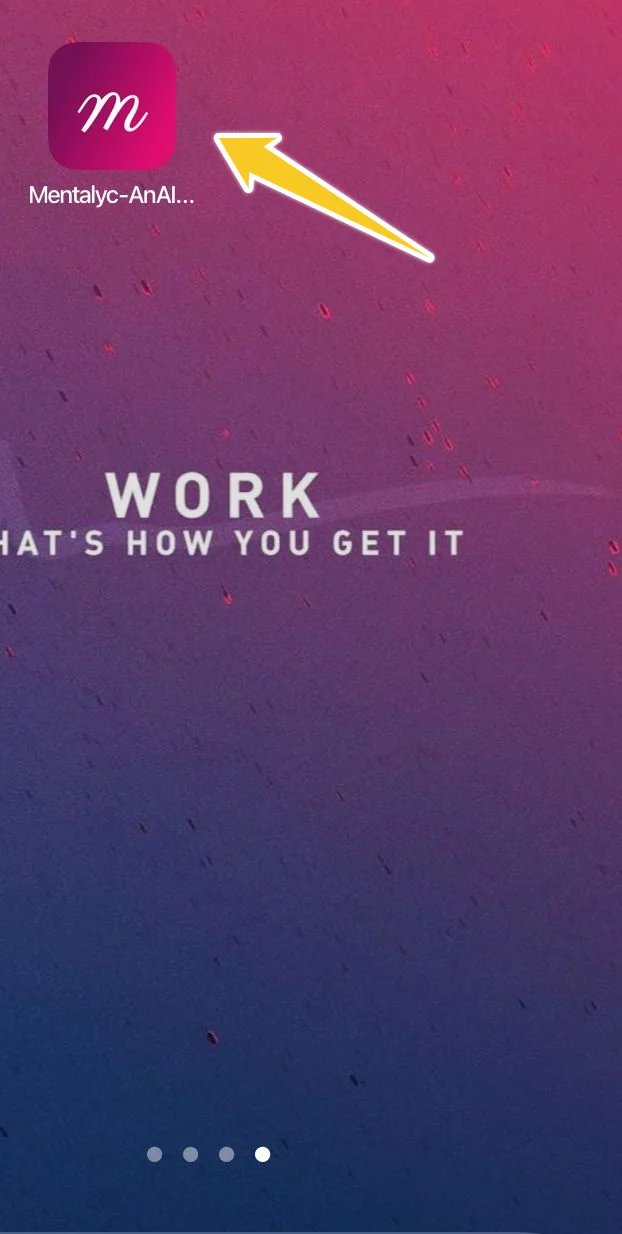
How to create a Mentalyc shortcut from Safari
Tired of always having to access the Mentalyc website through your Safari browser? We've got you covered. Safari allows its users to create shortcuts for their frequently used websites. This article is a step-by-step guide that shows you how to access the Mentalyc website using just one click!
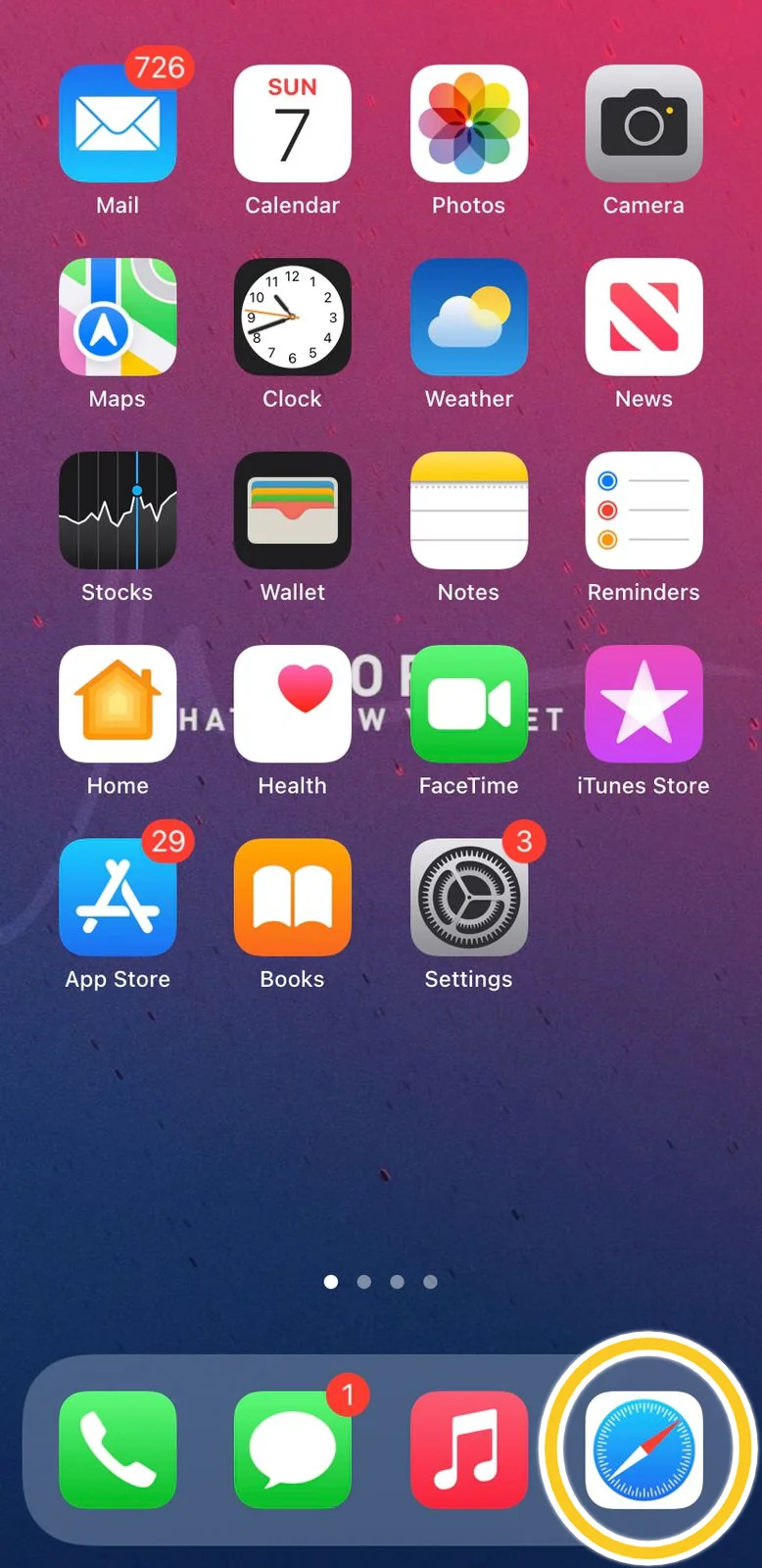
Step 1: Access your Safari web browser usually located at the bottom of your phone’s screen.
Step 2: After accessing the browser, type in Mentalyc’s URL and then go to the login page (https://app.mentalyc.com/login)
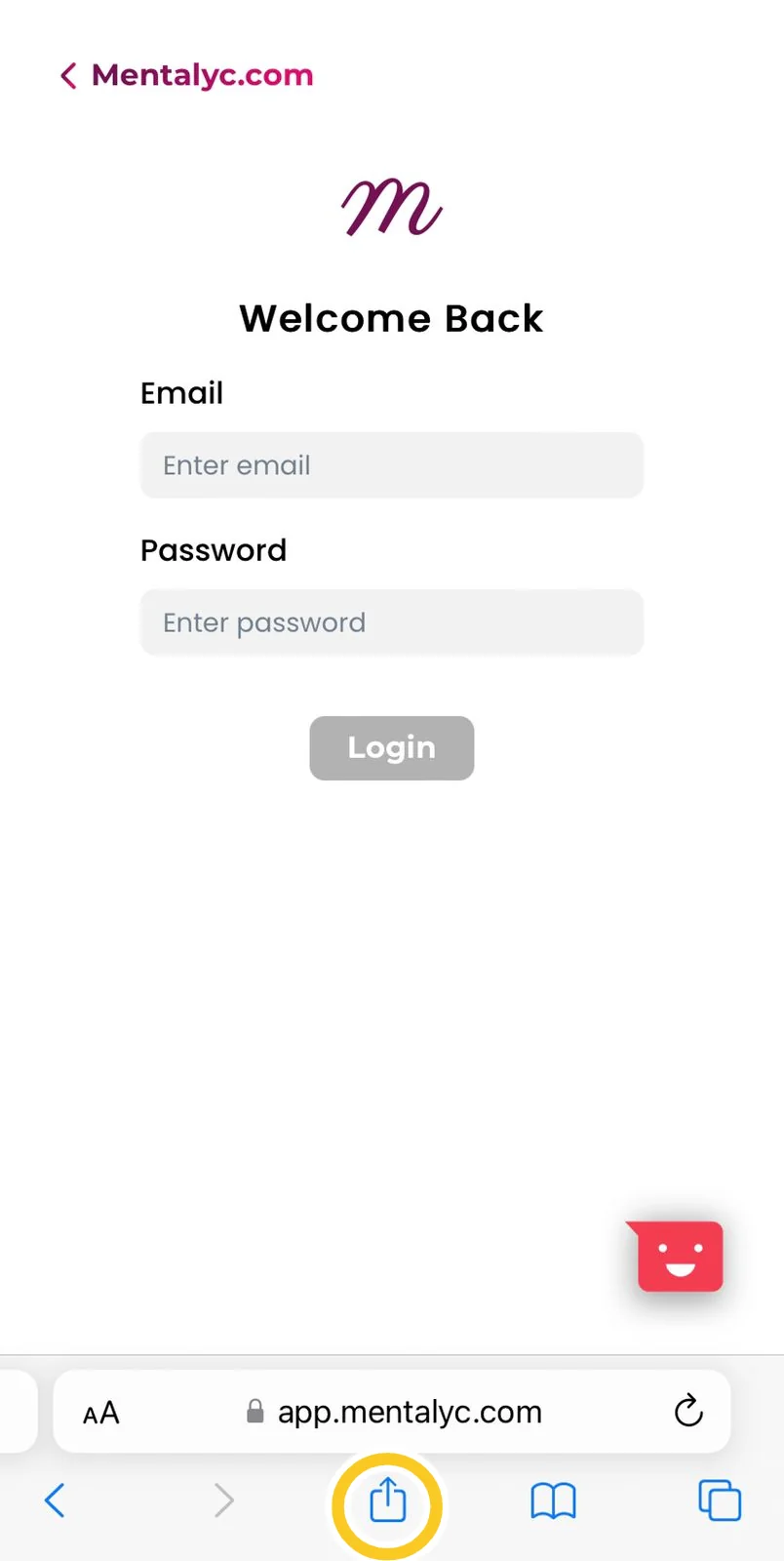
Step 3: Press the share button located at the bottom of your screen.
Step 4: Press on the “Add to Home Screen” button.
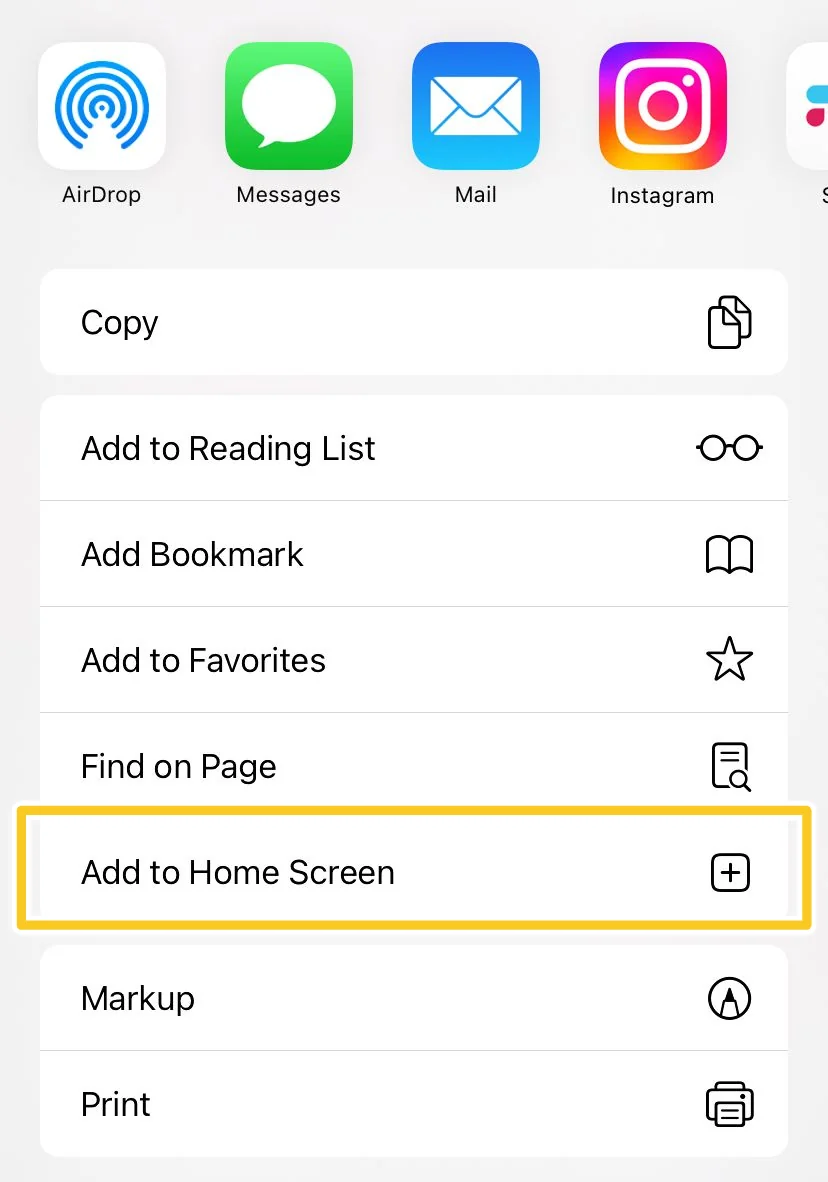
Step 5: A new screen will appear with the website’s icon name and link. Then press the “Add” button.
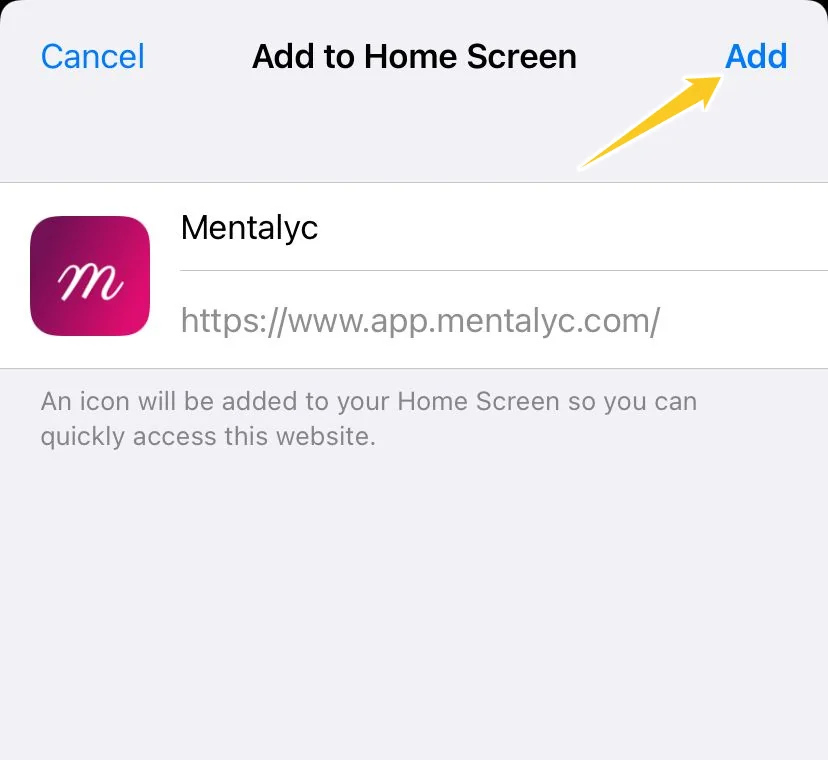
Step 6: After pressing the “Add” button the shortcut icon should appear on your phone’s screen. Pressing the icon directs you to the Mentalyc website without the hassle of having to open Safari again.